
The Guest role makes it easy to give external partners and collaborators access to Flexwhere without adding them as regular employees.
Guests have the same Flexwhere permissions as employees. They can use Flexwhere on web, iOS, and Android to make bookings, search for colleagues and view workplace details.
How to add a guest?
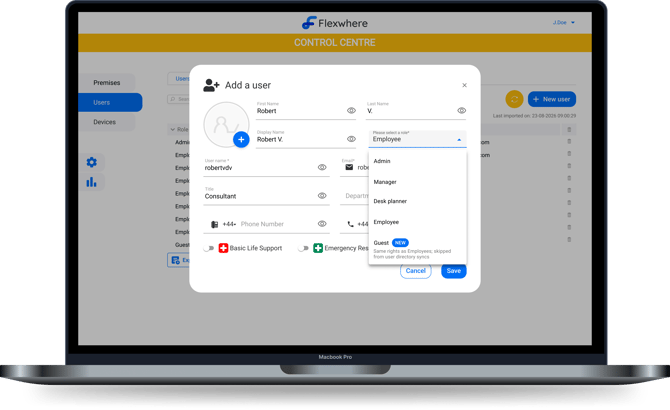
You can add a guest from the Users section of the Control Centre:
- Open Users in the Control Centre.
- Add a new user.
- Select Guest as the user’s role.
- Complete the user details and add the guest.
Once added, the guest automatically receives an invitation email with a link to access Flexwhere and information to help them get started.
What can guests do?
Guests have the same permissions as employees in Flexwhere. They can:
- Log in to Flexwhere on web, iOS and Android
- Search for colleagues
- Make workplace bookings
- Use quick booking
- View workplace and object details
This means external users get the same booking experience as your employees.
Guests and user directory synchronisation
The important difference between a Guest and an Employee is how they are handled during user directory synchronisation.
Guest users are skipped during user directory syncs. This allows you to manage external partners and collaborators in Flexwhere without including them in your regular employee directory synchronisation.
What does the guest receive?
When you add a new guest, Flexwhere automatically sends them an invitation email.
The email introduces Flexwhere and provides a link to access the platform. Depending on your organisation's setup, the link takes the guest to your Flexwhere domain or the login page.