
In the Control Centre floor plan editor you can resize and turn several objects in one go. When you select two or more objects, the Bulk edit panel now has a Transform section for this, so you no longer need keyboard shortcuts. This article explains how it works.
How does it work?
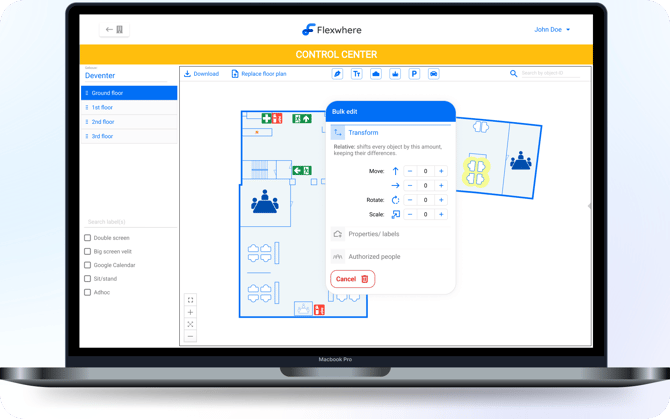
Select two or more objects on the floor plan and the Bulk edit panel opens. It has three sections:
|
Section |
What you can do |
|
Transform |
Scale and rotate all selected objects at once |
|
Properties / labels |
Change the properties and labels of the selected objects |
|
Authorized people |
Set who may use the selected objects |
With Delete you remove all selected objects.
Adjustments in Transform are relative: every object changes by the same step, starting from its own current size or angle. Objects that were different sizes or angles stay different.
Example: you select three desks at 0°, 10° and 90° and rotate by +5. They end up at 5°, 15° and 95°.
How to scale or rotate several objects
- Open the floor plan in the Control Centre.
- Select two or more objects. Selected objects are highlighted in yellow.
- In the Bulk edit panel, open Transform.
- Use the plus and minus buttons to scale or rotate step by step.
- Or type a number in the field. It is added to each object's current value: typing 9 shows as +9 and does not set every object to 9.
- Your changes are saved automatically.
Can I still use the keyboard shortcuts?
Yes. They work as before:
|
Shortcut (Windows / Mac) |
What it does |
|
Ctrl + ↑ / ↓ · Cmd + ↑ / ↓ |
Scale the selected objects |
|
Ctrl + ← / → · Cmd + ← / → |
Rotate the selected objects |
FAQ
Can I set all selected objects to the same size or angle?
Not with Transform; it always adjusts relative to each object's own value.
Are changes to properties, labels and authorized people saved automatically too? No. After changing Properties / labels or Authorized people, select Save to confirm.